All About the Cricut StickerPix Print
If you loves crafts, stickers, and personalizing everything you own, a traditional Cricut cutting machine might be more than you need. Cue the Cricut StickerPix Print machine…it’s Cricut’s new dedicated device designed specifically to print and laminate high-quality, pre-cut stickers and photos at home in a single step.
I bought one for my daughter for her 9th birthday, but I’ll obviously be using it too 🙂 Here is a full breakdown of how the machine works, how it compares to other Cricut models, and why it makes a fantastic 9th birthday present.
What is the Cricut StickerPix Print?
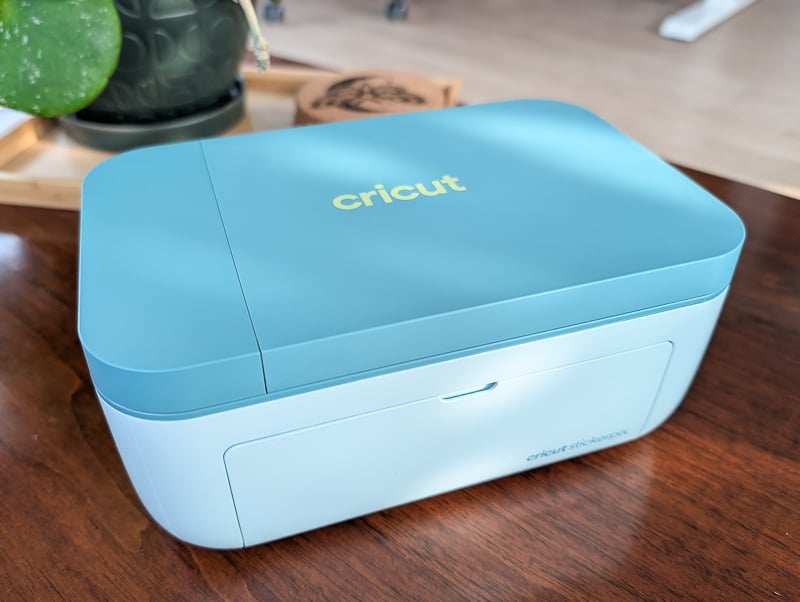
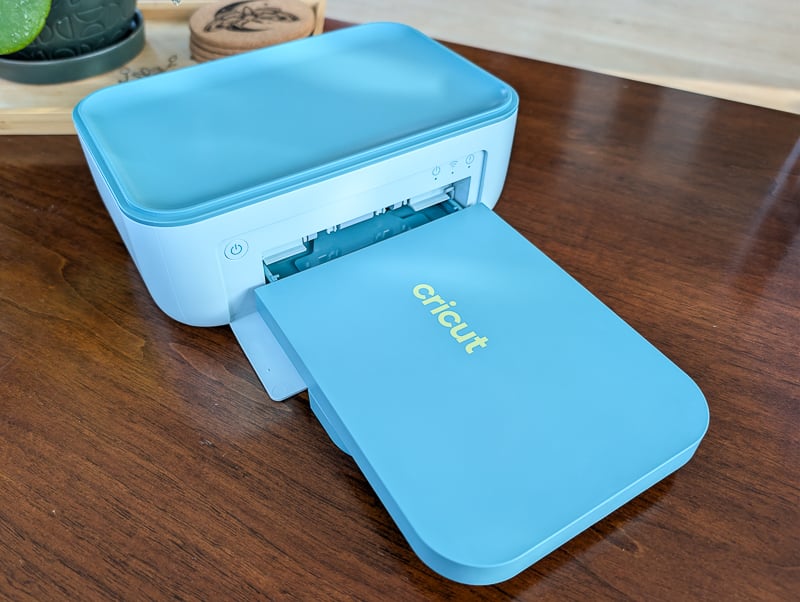
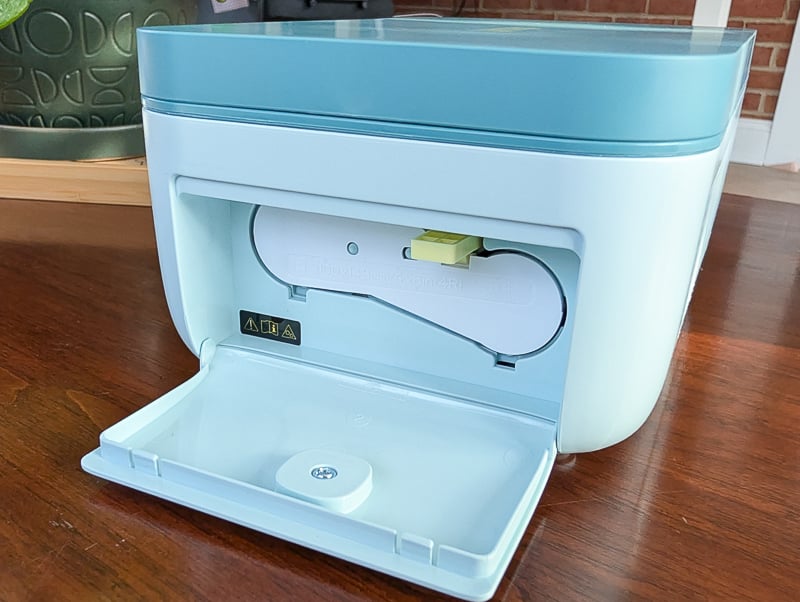
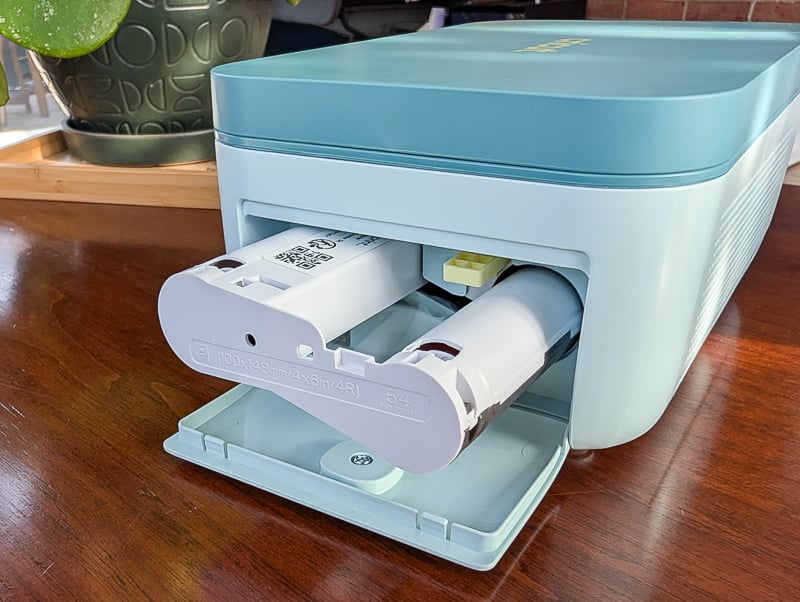
The Cricut StickerPix Print streamlines custom sticker creation into an effortless process. Standard DIY sticker projects require an inkjet printer, specialized vinyl sheets, manual lamination application, and a separate cutting machine with sticky mats. The StickerPix Print removes the precision cutting step by using pre-cut sticker paper shapes and focusing on flawless, protective printing. And it’s so small it can easily fit in a drawer!
Key Features & Workflow
- Automated Printing & Lamination: The machine prints full-color designs in high resolution and automatically applies a clear protective laminate layer in the same pass. The printer is IN the machine!
- Pre-Cut Sticker Sheets: Instead of cutting shapes with a blade, the system uses specially designed sheets with pre-cut circles, rectangles, and custom sticker outlines. (There is a version of the StickerPix machine that can cut, but I got the one that can print only.)
- Water & Scratch Resistance: Built-in lamination makes the stickers tough and waterproof, perfect for water bottles, lunch boxes, and school supplies.
- Design Space Integration: Select or customize templates in the Cricut Design Space app, send them wirelessly via Bluetooth or Wi-Fi, and hit print.
How It Compares to Other Cricut Machines
Choosing the right option depends on whether you want a zero-maintenance sticker printer or a full-featured cutting machine for multiple craft materials. There is a machine for everything, but they are different sizes and price points, do you need to ask yourself which one meets your needs.
1. Cricut StickerPix Print vs. Cricut Joy Xtra
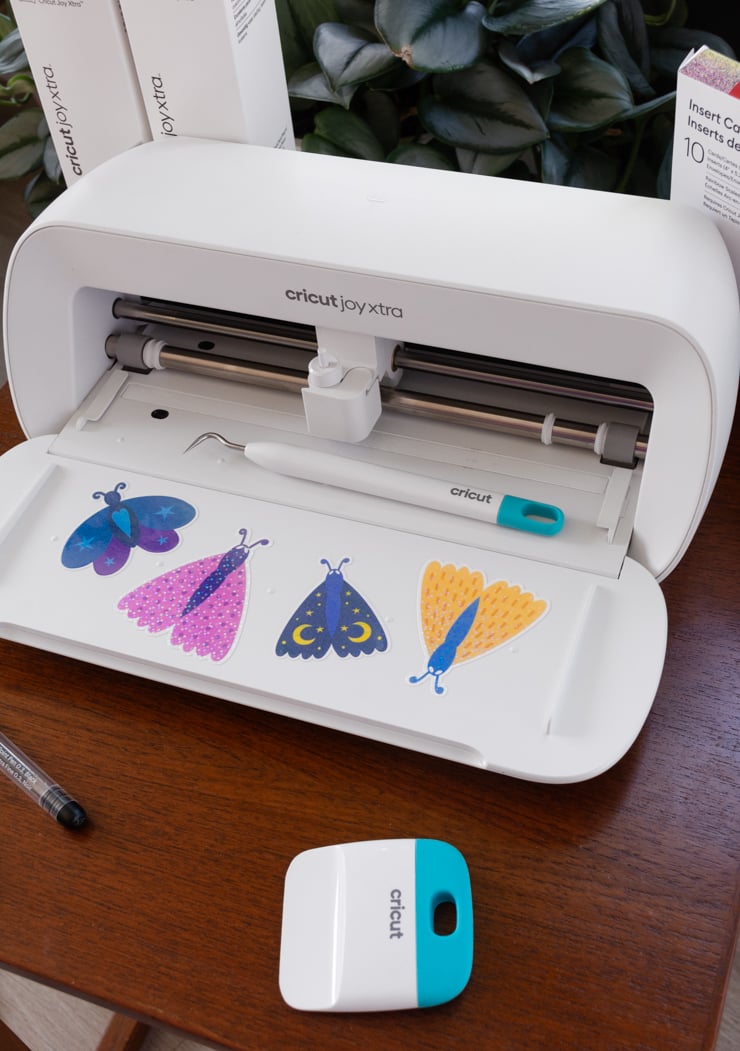
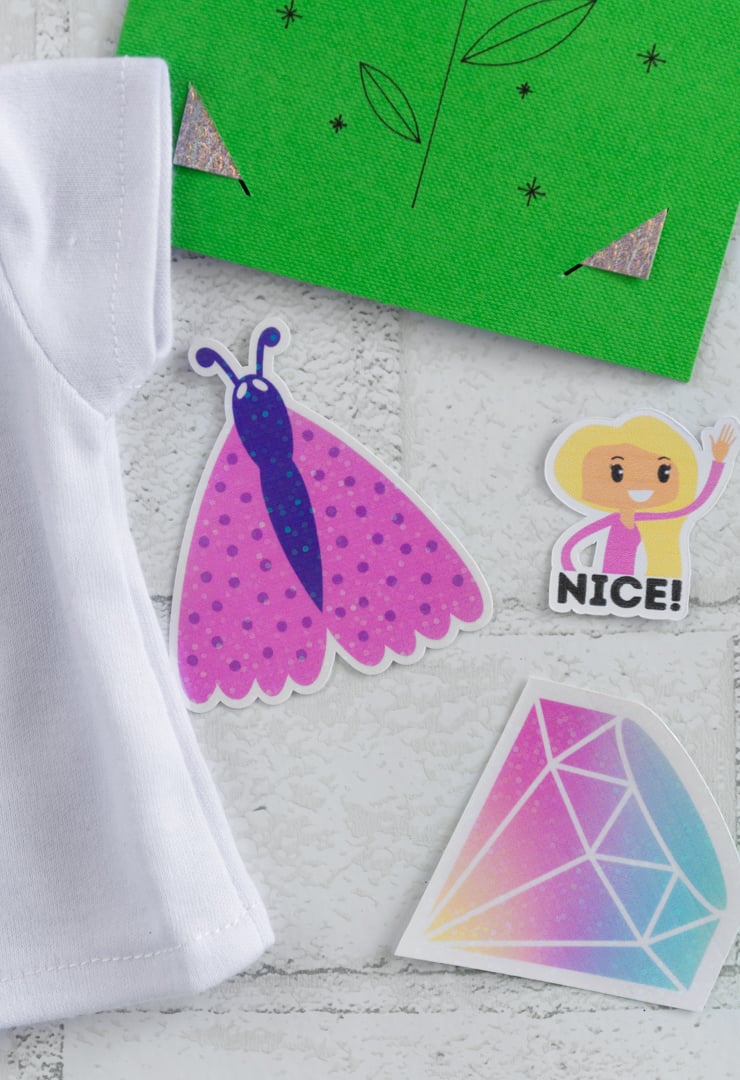
The Cricut Joy Xtra is a traditional cutting machine supporting Print Then Cut up to letter size. It requires a separate home printer to print designs, manual lamination, sticky mats, and precise blade calibration. The StickerPix Print trades blade-cutting versatility for pure convenience, providing printed, laminated, and pre-cut stickers straight out of the machine.
2. StickerPix Print vs. StickerPix Print + Cut
The Cricut StickerPix Print + Cut includes an integrated precision cutting blade alongside its dye-sublimation printer. It allows you to print, laminate, and custom-contour cut stickers into any custom shape on blank sheets in a single pass. In contrast, the Cricut StickerPix Print drops the internal blade entirely to focus on ultimate simplicity. It relies on pre-cut sticker sheets (like circles, squares, and rectangles), making it a lower-cost, completely blade-free option that produces instant laminated prints without any electronic die-cutting required.
Who Is the Cricut StickerPix Print Good For?
- Young Crafters: This machine is completely blade-free and mat-free, making it extremely safe. They can design, print, and peel stickers entirely on their own.
- Beginners Seeking Hassle-Free Crafting: It eliminates complex blade depth calibration, mat loading, alignment errors, and printer jam issues.
- Planner Lovers & Photo Enthusiasts: Great for quickly printing customized planner stickers, photo prints, and decorative labels directly from a smartphone or tablet.
Things I’ve Made…
As any parent knows, it’s always a good idea to set up a product before you give it as a gift! Remember getting a present on Christmas and not having the batteries it needs? The worst. So I got this out and set it up so I could make sure we could hit the ground running with projects when my daughter opens this on her birthday.
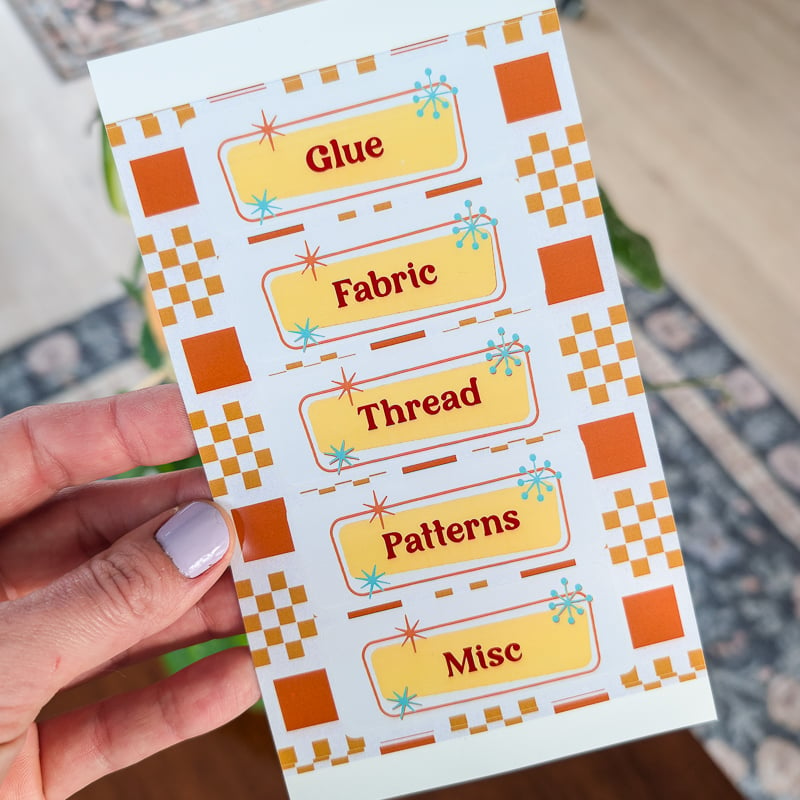
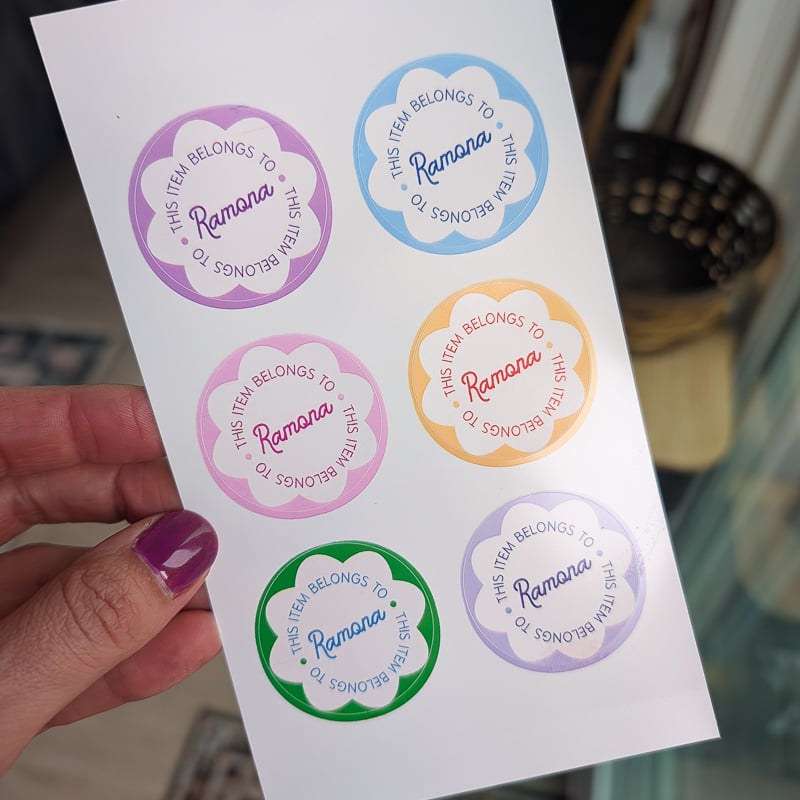
1. School Labels
I made these using a template in Design Space. They were easy to customize and print, and my daughter can put them on school stuff. This was also a great way to try out a few different colors.
This was the very first project I made, and I was amazing by the printing! It’s not like a home printer you might be familiar with where it prints it out slowly. Instead, the machine will take multiple passes, layering on colors from the ink cartridge until the finished color has been achieved.
2. Labels for Herbs & Spices
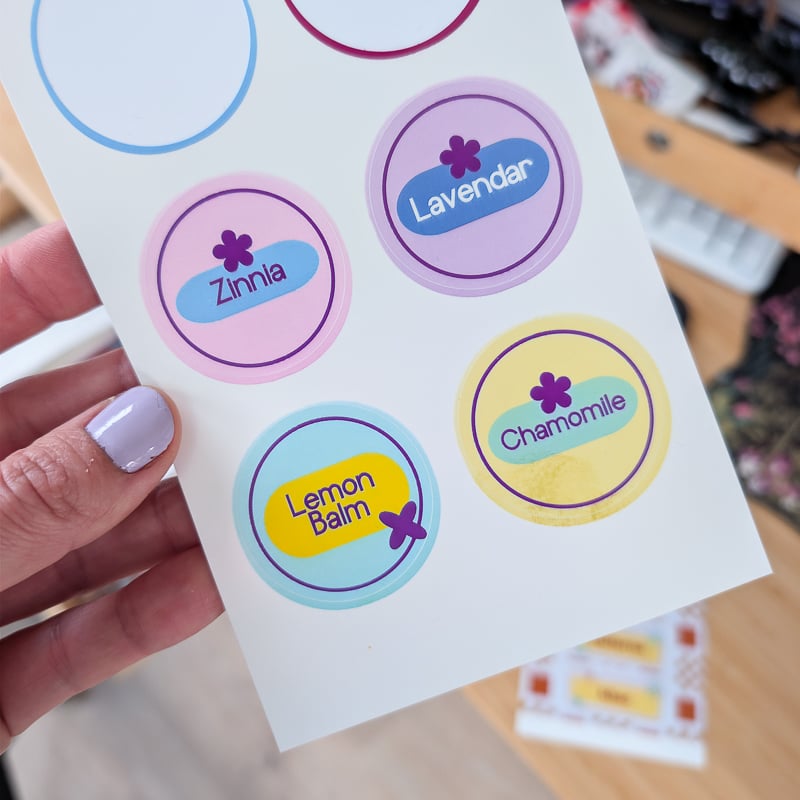
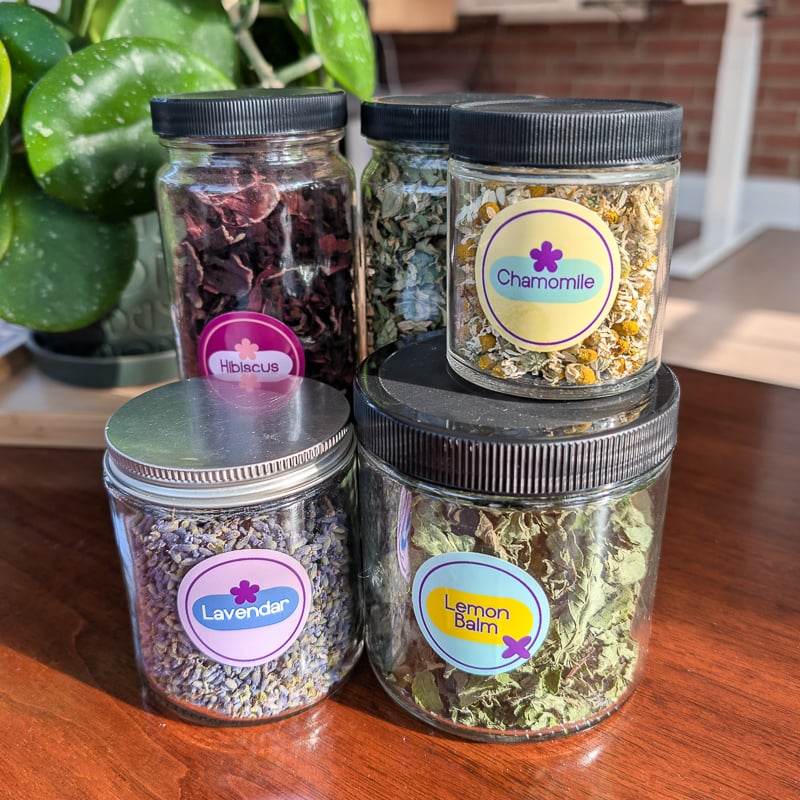
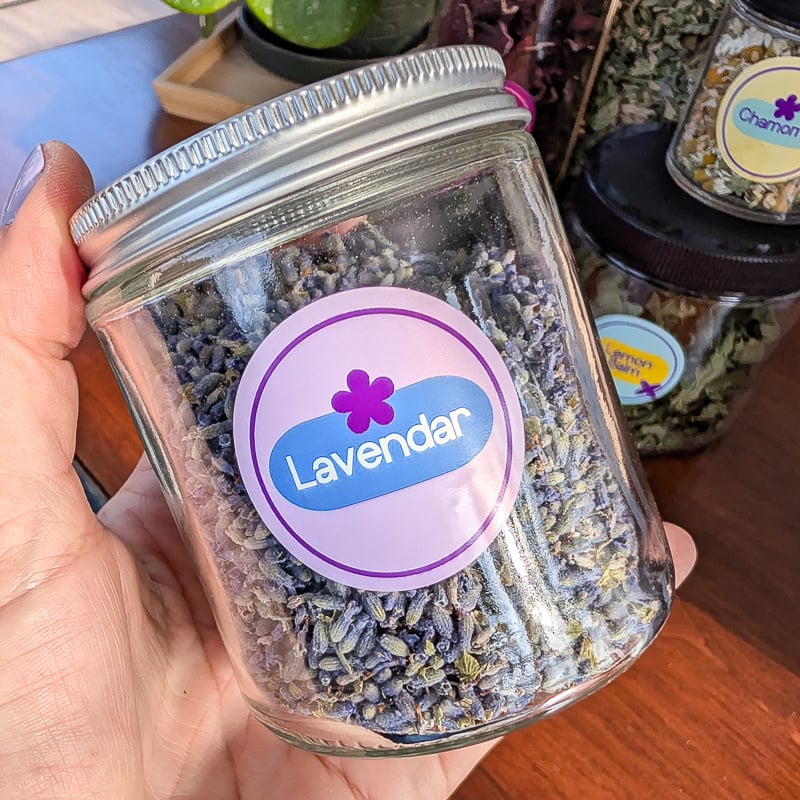
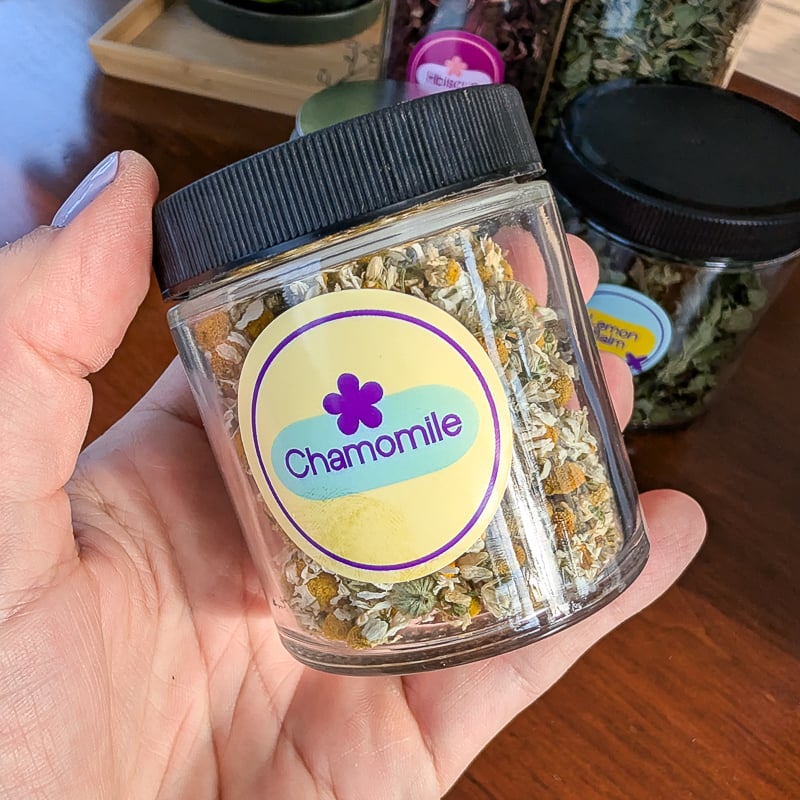
I dry a lot of my own herbs and spices from the garden, and they often end up in containers I’m reusing. I scrub off the labels to these glass everything bagel seasoning jars I love from Aldi. So these labels were a great project for that! I found that they stuck better to the glass than they did to the plastic tops of the jars.
3. Testing a Photo Print
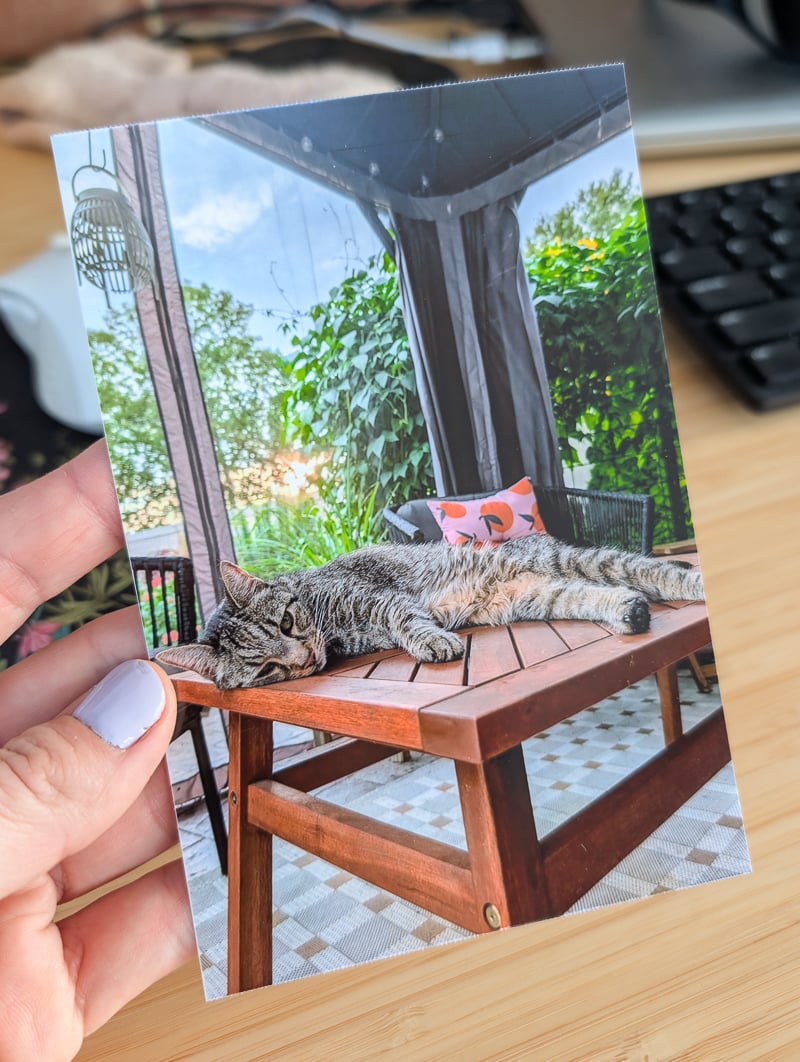
And finally, I wanted to test a photo print. I don’t anticipate using this a lot for that, but it IS nice to have an option to just print one or two photos without putting in an order online somewhere and paying a shipping fee. The colors turned out beautifully.
And that’s about it! If you’re looking for something straightforward, easy to store, and blade free, The StickerPix Print is a nifty little machine. I foresee a lot of uses for this around the house, and when my daughter get her hands on it and can look in Design Space, I’m sure she’ll have a bunch of projects to queue up, too!